Performing a route test on Windows - WinMTR
Hello, first we will explain how the MTR test works. Every internet connection is made up of packets that travel from your computer to the destination server and vice versa, that is, we can take as an example when you access a website, you are sending packets requesting the information present on the website and the server on the other side responds with the images, text and other items present on the website, so that they are displayed in your browser. This way there is communication between client-server -> server-client (bidirectional) and if there is any connection problem between the two, there may be connection failures or slowdowns.
To evaluate connection problems, it is vital to carry out the MTR test, which will be used to analyze the connection route between the client and the server in order to identify possible points where there is packet loss or an increase in connection latency (ping). Carrying out the test can be carried out in a simplified way, just download the specific program for these testsby clicking here
**Attention. The test must be carried out on the computer where the problem is present, whether it is slowness or a connection problem. **
After downloading and executing the file, simply enter the server IP and click Start, as shown in the image below.
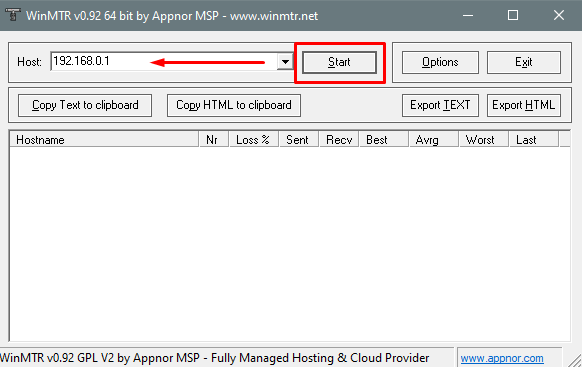
After this, just wait about 30 seconds, take a screenshot (photo) of the screen and send it to us through one of our support channels.
Considering that some problems may occur intermittently, that is, your server may experience a disconnection from time to time, we also recommend that the test be carried out at the time when this supposed disconnection or slowness occurred, so that we can capture the data at the exact moment the problem occurs.
If you still need help, open a ticket with our support.