How to activate VPS VNC through the Cloud panel?
VNC allows you to access the VPS console directly through the Cloud panel. It is useful when SSH or Remote Desktop access is not working, during network configurations, or to monitor system startup.
1. Access VPS settings
Enter the Cloud panel, locate the desired VPS and click on the gear icon located on the right side.

2. Open VPS configuration
From the VPS management page:
- Click on the Settings tab;
- In the side menu, click on VPS Configuration.
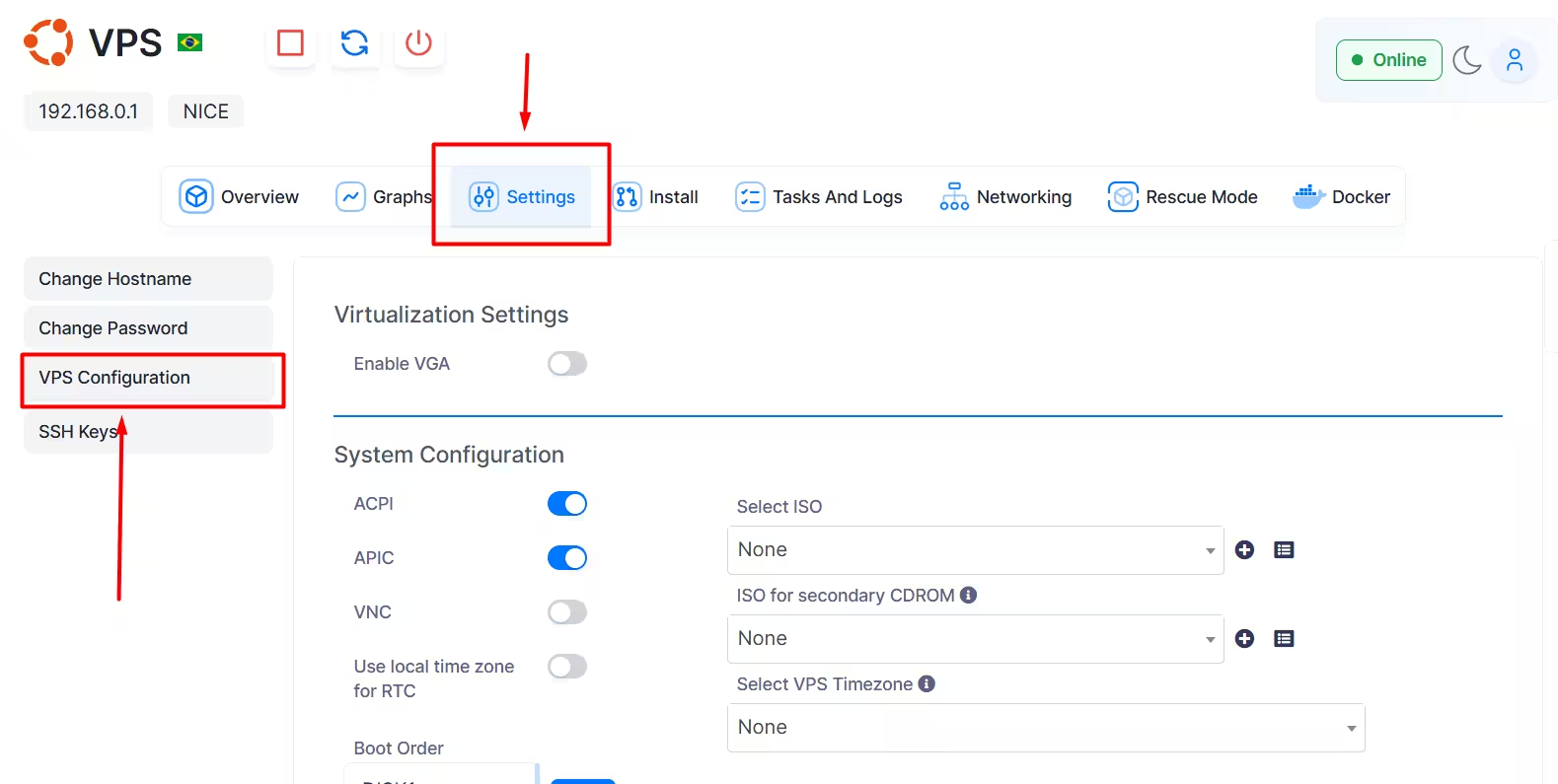
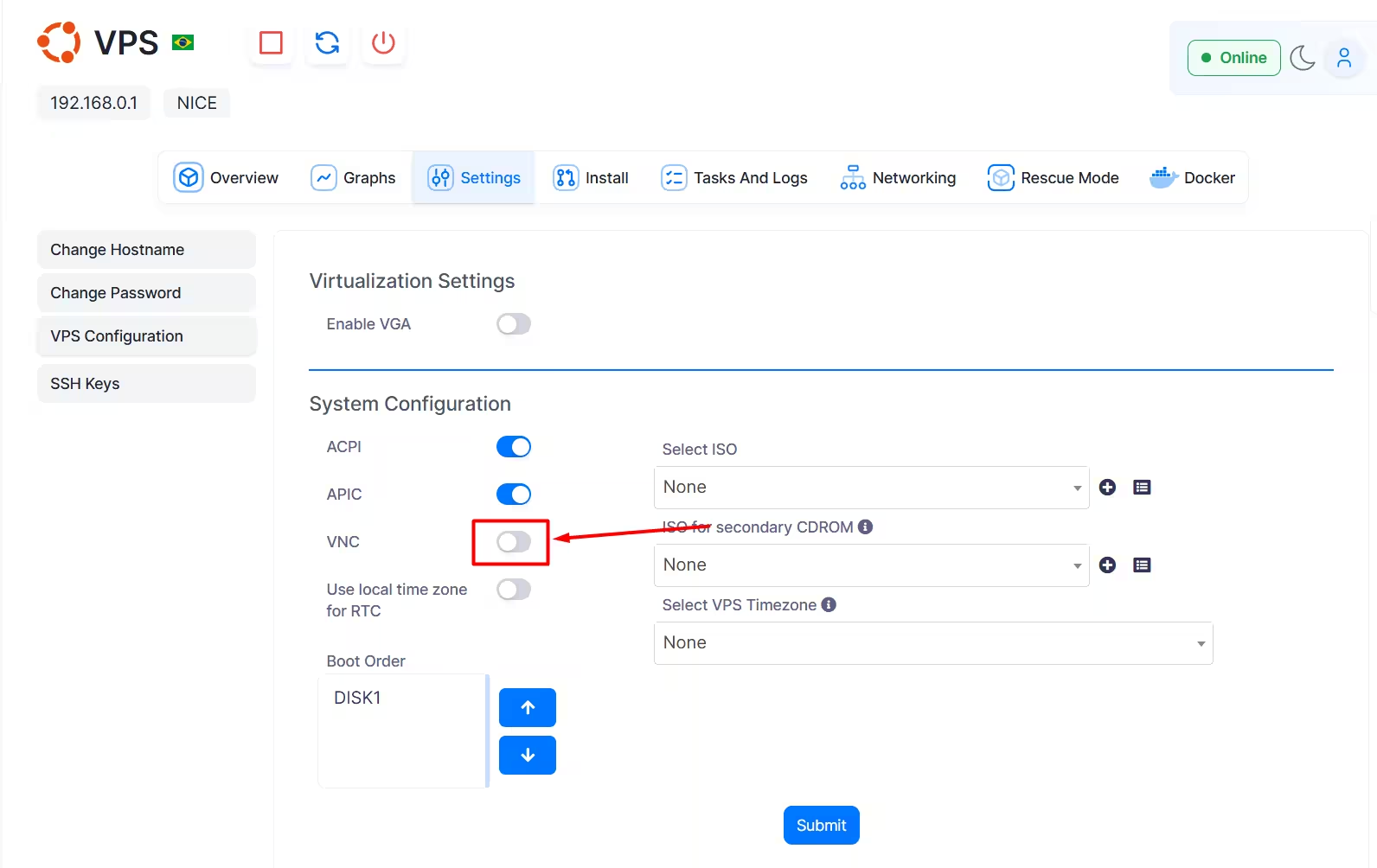
3. Activate the VNC option
In the System Configuration section, locate the VNC option and click the button to activate it.
When enabled, the button will turn blue.
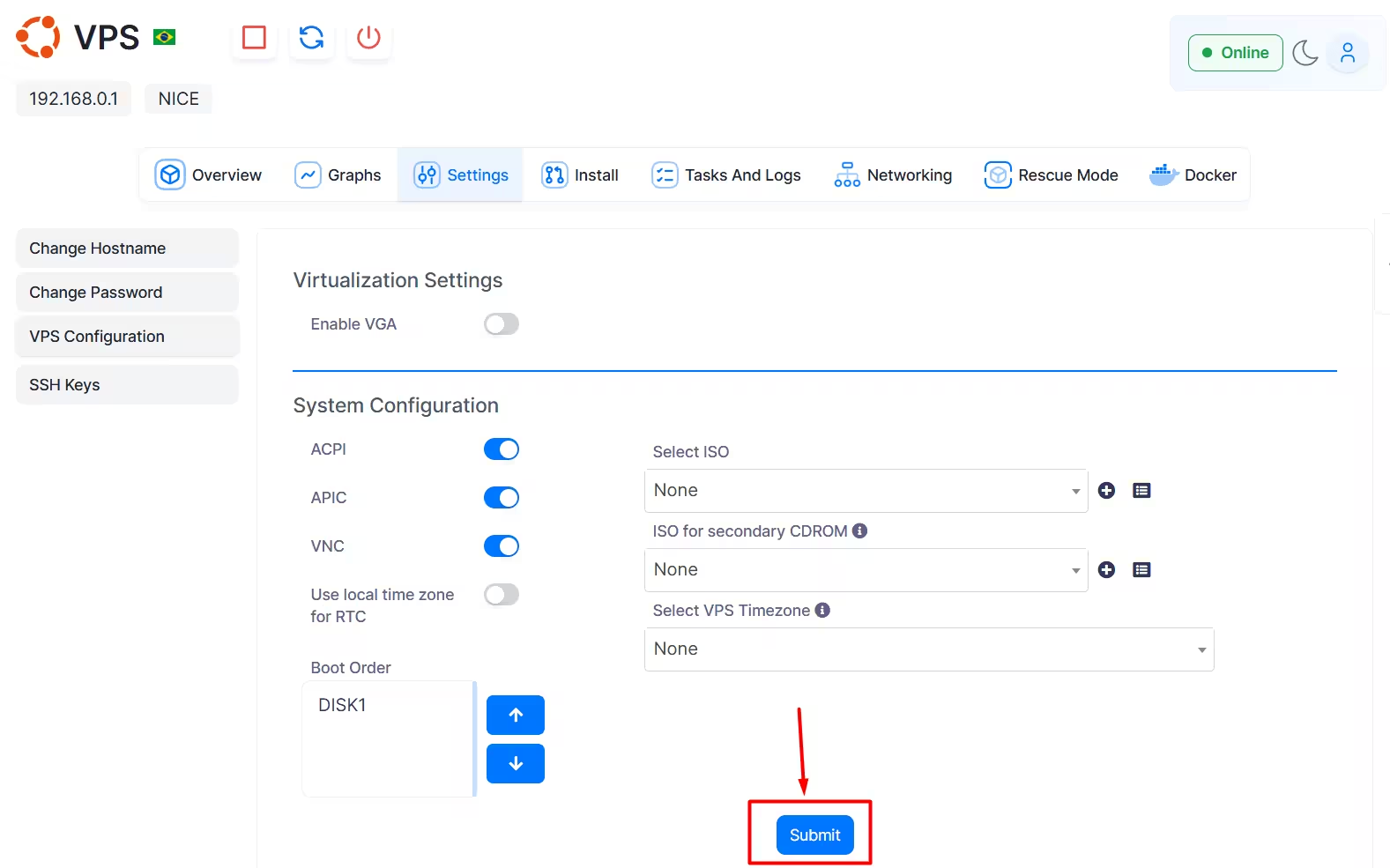
4. Save the configuration
After enabling VNC, scroll down to the bottom of the page and click the Submit button to save the change.
5. How to access VNC
After saving, reload the page and after that a screen icon will appear in the cloud panel, this icon is the VNC icon and you can click on it.

6. Accessing the VNC console
After following step 5, a pop-up will appear with VNC information, you can click "Launch VNC" to access the VNC console.

FAQ
Do I need to restart the VPS?
Typically, the configuration is applied after clicking Submit. If the VNC console is still not available, restart the VPS via the panel and try again.
Does VNC replace SSH or Remote Desktop?
No. VNC works as an emergency console. For daily use, we recommend continuing to use:
- SSH on Linux servers;
- Remote Desktop - RDP on Windows servers.
When should I use VNC?
VNC can be used when:
- The VPS does not respond via SSH or RDP;
- An incorrect network configuration blocked access;
- It is necessary to monitor the system initialization;
- The VPS firewall blocked the remote access port;
- The operating system is experiencing errors during startup.
Is it recommended to always leave VNC enabled?
To be safe, keep VNC enabled only when necessary. After completing maintenance, you can return to the same page, disable the VNC option, and click Submit again.
If you still need help, open a ticket with our support.